

When the Steam Controller was first unveiled alongside the Steam Machine in 2015, its goal was to bring 'Steam to the living room.' The plan was to expand the platform's reach to TVs, just like a console, but there was one major hurdle: Steam games were designed for keyboard and mouse (KBM) controls, not gamepads.
Today, with many games maintaining multi-platform strategies, gamepad support has become semi-mandatory. Just as Xbox added controller support to bring the fast-paced real-time strategy game Age of Empires IV to consoles, genre is no longer a significant barrier. While this may not seem like a massive shift, it is clear that in the past, using a gamepad for KBM-essential games—like StarCraft 64 or Halo Wars—was considered a risky experiment.
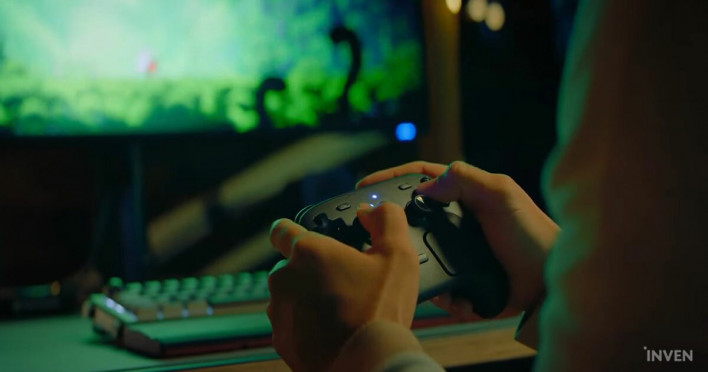
For Valve, moving games already optimized for KBM into the living room was a major challenge. The goal wasn't just to map game systems to a pad, but to make KBM controls playable on a gamepad. This objective led to the Steam Controller's novel, albeit bizarre, design: trackpads replacing the D-pad and right analog stick. While it succeeded brilliantly at translating mouse movement to a pad, it undermined the traditional gamepad experience. It was a controller that felt strangely useful in some ways, yet oddly impractical in others.
That is why the 2026 Steam Controller is undeniably different. It enhances the pure gamepad experience while enabling mouse-like control via its two trackpads. The ambiguity of 11 years ago is gone. What was once a confusing hybrid of gamepad and trackpad has been redefined as a clear, dedicated game controller.
This Time, It's a Real Gamepad
A Steam Controller Built on New Foundations
The fundamental experience of the Steam Controller is now that of a proper, full-fledged gamepad.
It now features a D-pad, which was previously missing, and retains an analog stick on the right. Essential buttons like bumpers and triggers are present, along with two back-grip buttons on each side. It has a sufficient number of buttons for any input style. While this might sound like stating the obvious, it is a significant upgrade because the previous version lacked these features.
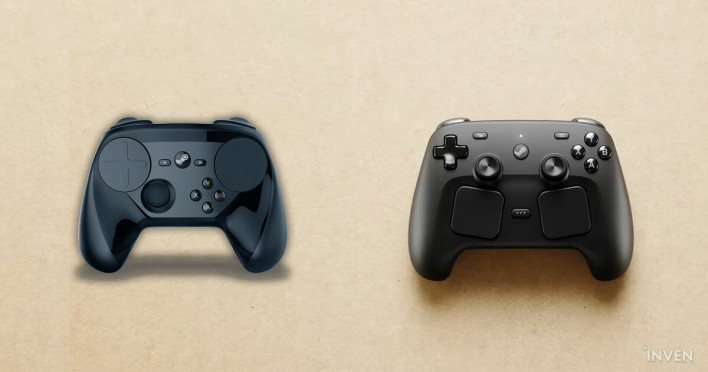
With a solid foundation, the question of 'what can I actually use this for?' has vanished. Even without the trackpads, the controller's build quality is on par with other standard gamepads.
Beyond basic controls, the overall form factor feels familiar to gamers. While photos made the trackpad area look intimidatingly large, the actual size is comparable to controllers from other manufacturers. It is certainly not small, but it is not so large that it hinders gameplay.
At 290g, it is slightly heavier than a DualSense. However, given its button configuration, it is best compared to high-end controllers, and it is noticeably lighter than the DualSense Edge or Xbox Elite Series 2, both of which exceed 300g.
It is also cleverly designed to push control inputs outward rather than inward. Instead of the asymmetrical layout found on Xbox or Nintendo Switch controllers, the Steam Controller uses a symmetric layout, placing both analog sticks below the D-pad and face buttons.
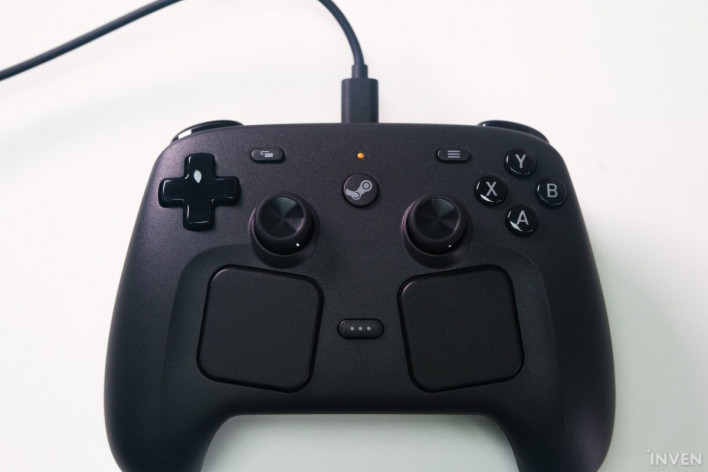
Whether one prefers the symmetric layout of the PS DualShock/DualSense or the asymmetrical style of the Xbox controller depends on personal experience and muscle memory. However, the presence of large trackpads between the grips changes the equation.
Because the analog sticks are positioned higher than the D-pad and sit directly above the trackpads, there is less risk of your palm covering the trackpad while using the sticks. When pressing the D-pad or face buttons, the base of your thumb naturally rests higher or further outward than the analog sticks. Simply put, this symmetric design minimizes the chance of accidental trackpad inputs.
The device's shape and button placement also affect grip, which is quite decent. I say 'decent' because, while it is impressive given the unique form factor and features, it falls slightly short of the top-tier ergonomics found in other high-end controllers—a compromise necessary to accommodate the Steam Controller's unique functionality.
Personally, I have small hands—the Switch Pro Controller fits me perfectly—so the Steam Controller felt a bit large. However, it feels surprisingly secure in the hand, thanks to the grips that descend almost vertically rather than angling outward. The generous inward curvature also helps provide a firm hold. Initially, the controls, especially the analog sticks, felt far from the grips, but that feeling faded as I grew accustomed to the design, which encourages a slightly looser grip.
Of course, the large trackpads make a 'tight-fisted' grip impossible. Instead, the design forces a lighter hold, which is common with modern controllers that require your index and middle fingers to reach for bumpers and triggers. Consequently, the concern that the trackpads would ruin the ergonomics didn't manifest during actual play. The materials and build quality have also improved; the toy-like, misaligned finish of the past has been replaced with the polish of a premium gaming peripheral.
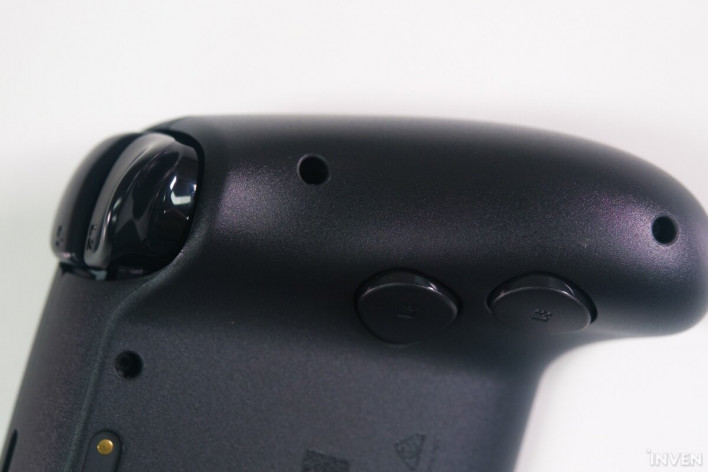
While I will cover button feel and feedback later, it is a shame that the material doesn't feel particularly 'tacky' or grippy. While the current material feels more premium than before, using a high-friction material across the entire pad might have been counterproductive, as your hands need to shift slightly to move between trackpads, sticks, and buttons. Still, I wish they had incorporated a textured finish like the DualSense.
This choice of material may have been a deliberate decision to support one of the controller's most unique features: Grip Sense.
Controls That Change at a Touch
The Potential Created by Grip Sense, Gyro, and Trackpads
Grip Sense literally detects whether you are holding the grips. Leveraging the Steam platform, this enables a variety of fun and creative control schemes.
Grip Sense requires a firm 'hold' on the grips; it doesn't trigger from a light touch or just resting your fingers on the controller. It recognizes when the player is actively holding it. This is most intuitively utilized with the gyro controls.
Gyro controls use motion sensors to detect the controller's orientation and movement. In shooters, this is often used for fine-tuning aim when analog sticks are too imprecise. While effective, using the controller itself for movement can introduce issues.

Gyros often detect unwanted movement when you set the controller down, shift your posture, or move it to reach other buttons. The Steam Controller solves this: when you release your grip, the gyro stops. There is no need to press a dedicated button to toggle it. Since the gyro activates simply by holding or releasing the controller, your reaction speed increases significantly.
It is also effective for 'turning' maneuvers. Previously, to keep rotating the camera, you had to keep moving the controller. Unless you were standing or constantly watching the screen, this was physically impossible. Now, you can move the controller, release your grip to reset it to the center, and resume—essentially performing a 'mouse lift' maneuver with the gyro.
I previously mentioned that the gyro stops working when you let go of the controller, but that is only half true. To achieve this, you must configure the gyro to activate only while a specific button is held down. In other words, the grip sensor acts as a button. Naturally, you can set it to recognize only one side of the grip, or even assign the grip itself to perform an entirely different function. If you map it to a mouse click, you can fire a weapon simply by gripping or releasing the controller, or use it in tandem with the gyro for precise mouse movements.
The analog sticks also feature touch detection, allowing them to function as buttons. Beyond the standard R3/L3 click, you can assign separate functions to a light touch. With Steam's highly flexible mapping, the potential for creating new control schemes is limited only by your imagination.
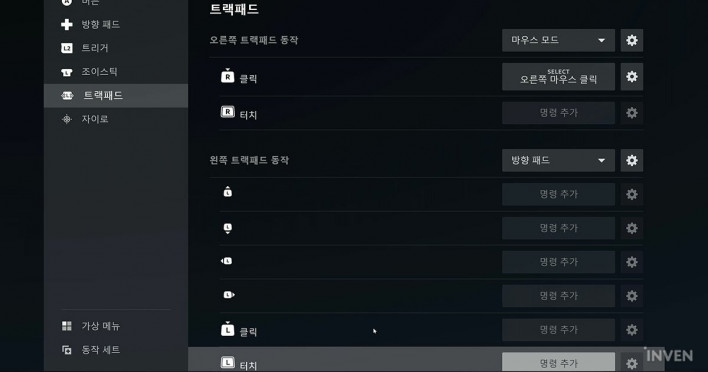
This versatility is further enhanced by the trackpads. They feel like a direct port of the Steam Deck's trackpads. They provide no feedback when powered off, but when active, they offer subtle haptic vibrations that simulate the feeling of touching a surface. The 'click' is also simulated through this vibration—it feels like a physical button press, identical to the Steam Deck or the Force Touch system on MacBooks and iPad Magic Keyboards.
As on the Steam Deck, these trackpads serve as mouse replacements, but they are far more flexible than expected. While the technology isn't radically new, the dual-trackpad layout makes mouse control much more fluid. Since a single trackpad has limited travel distance, using both thumbs allows for continuous, long-distance pointer movement.
These trackpad inputs can be configured in extreme detail via the Steam app. Personally, I mapped left-click to the left trackpad and used the right trackpad to control the mouse pointer while using the analog stick with my right hand. It wasn't quite as precise as a mouse, but it was far more flexible than a standard controller. With a bit of practice—similar to learning a vertical mouse or a laptop trackpad—you could play quite freely.
The trackpads are recessed slightly below the analog sticks and, unlike the Steam Deck, are angled. Since your hands naturally tilt inward when holding the controller, this angle makes the trackpads feel more ergonomic.
The trackpads also integrate well with the analog sticks above them. In first-person shooters, using both simultaneously allows for precise aiming: use the analog stick for fast camera movement and the trackpad for fine-tuned adjustments. The symmetric layout, which places the sticks above the trackpads, is key to this synergy. When combined with the gyro and grip sensors, camera control becomes more fluid and free than on any other controller.
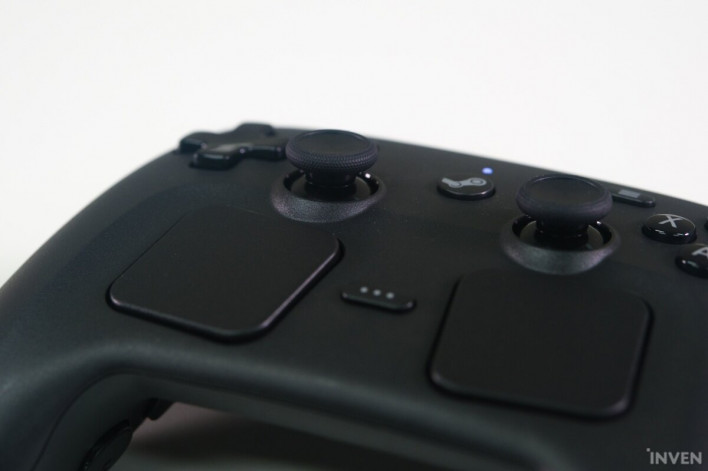
You can also split the trackpads into multiple directional buttons. Steam's software allows you to add secondary actions to a single button, input sequences, or change button layouts based on the situation. With enough creativity, you can perform a vast array of actions with just this one controller.
The overall vibration felt a bit weak, but like the trackpad haptics, the device's vibration is focused on providing feedback for your actions, which creates a more immersive experience during precise maneuvers.
From Pucks to Customization: The Steam Way
Infinite Possibilities, With a Learning Curve
The Steam Controller also puts significant effort into connectivity. The recommended method is the 'Puck.' The Puck connects to your device via USB-C and attaches to the back of the Steam Controller using pogo pins. It is magnetic, so it stays attached even if you lift the cable, provided you don't shake it too hard.
Once you connect the Puck to the controller, it automatically pairs with the device. After the initial pairing, the controller will automatically connect wirelessly to that device without needing the Puck, provided the Puck is still connected to the host. The Puck acts as both a connection hub and a receiver. One Puck can support up to four Steam Controllers, making it easy to manage multiple devices. Thanks to the Puck, initial setup is streamlined—no complex Bluetooth pairing or app configuration is required; just a few steps in Steam and you're ready to go.
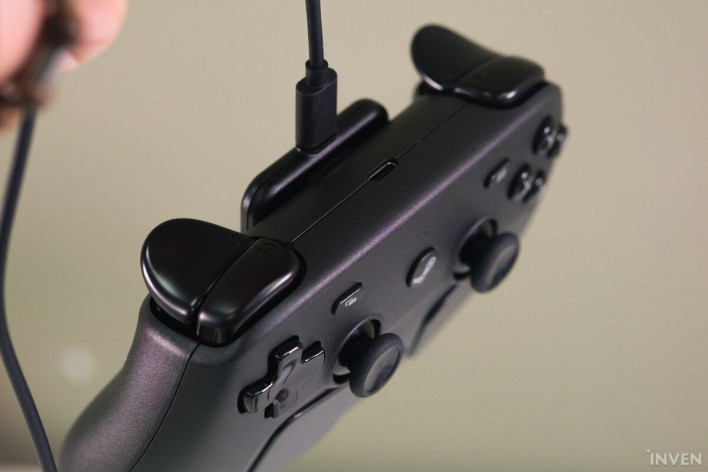
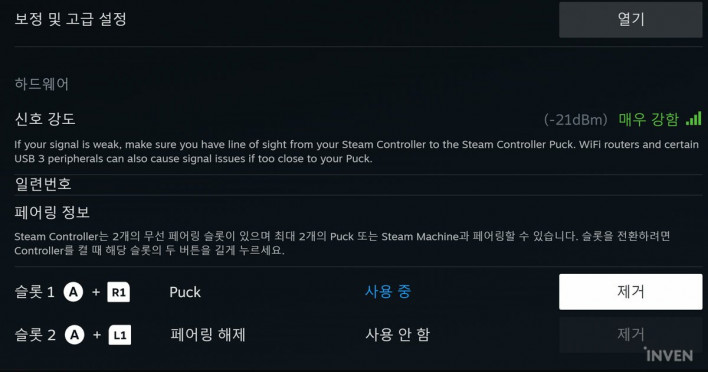
The Puck also handles charging. Since the Puck connects to the device via cable and the controller attaches to the Puck, you can play while charging. Because the Puck is small and not heavy enough to anchor the cable, it doesn't function as a cradle, leading to a somewhat messy cable setup. You can also charge the controller directly via its USB-C port without the Puck.
Since Puck connectivity is managed through the Steam app, it works identically on both Windows and Mac. Bluetooth is also an option, offering the same level of customization and settings within the Steam app. You can save two device profiles, allowing you to set up one for the Puck and one for Bluetooth to switch between devices.
However, switching between Puck and Bluetooth modes is a bit cumbersome: you must hold the right trigger and the A or B button while powering on the device. While not ideal, it is more flexible than most console controllers, and the method is clear enough.
A bigger disappointment is the complexity of the Steam app's customization features. Unlike high-end controllers like the DualSense Edge or Xbox Elite that rely on physical modules, the Steam Controller focuses on premium build quality and software-driven customization. It leverages the back-grip buttons and dual trackpads to offer a massive array of inputs, all configurable within the Steam app.
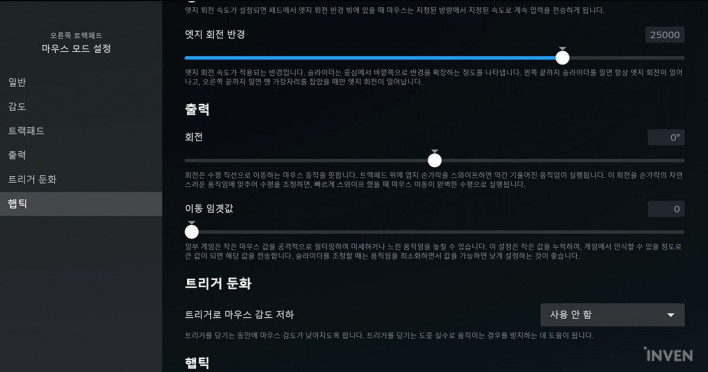
The Steam app's customization remains complex, largely due to the sheer number of features. It supports everything from stick sensitivity and dead zones to macros and complex button combinations. While much improved over the 2015 version, the interface still feels disjointed, as if features were added piecemeal. It is the most powerful customization suite on the market, but that power comes at the cost of a steep learning curve.
As with the Steam Deck, I suspect most users will wait for community-made profiles rather than creating their own. I spent a significant amount of time optimizing settings for this review, and I can't imagine doing that for every new game I play. I will likely stick to downloading community profiles and tweaking a few settings for most games.

Furthermore, some games do not support simultaneous mouse and gamepad input. For example, in Baldur's Gate 3, the KBM UI and controller UI are different and switch automatically based on the input device. Even if you map mouse controls to the trackpad, the game will constantly flicker between UIs, making it unplayable. You can work around this by mapping all controller buttons to keyboard keys, but it is a hassle.
While this is ultimately a problem for developers to solve, it is frustrating that the Steam Controller's unique ability to use mouse and gamepad inputs simultaneously cannot be fully utilized in all titles.
Much depends on whether developers provide official layouts for the Steam Controller. Valve's support for major titles will be crucial in helping users understand the controller's potential. Free games like Aperture Desk Job, which was provided to showcase the Steam Deck's features, could also help.
Valve has stated that they plan to provide tutorials, example templates, and user guides for the trackpads. They are also actively encouraging developers to support mixed-input scenarios. Since Valve is aware of UI issues like those in Baldur's Gate 3 and is discussing them with developers, we may see improvements in future titles.
The new Steam Controller shares its name and its goal—making all Steam games playable—with the 2015 original. But the journey is different. Lessons learned from past failures and the Steam Deck, combined with a more open approach to various devices and a shifting perception of game control, have transformed the Steam Controller from a niche mouse-replacement device into a 'real' game controller. If you plan to play on Steam, it is now a device well worth the purchase.
This evolution will play a vital role as the device that users interact with most directly. Steam is also preparing to launch the Steam Machine, which aims to conquer the living room, and the Steam Frame, which expands the VR experience. While external factors may prevent their releases from aligning perfectly with the Steam Controller, if they deliver on their promised performance and pricing, the Steam Controller will inevitably become the core of the entire Steam ecosystem.
Valve's strategy for expanding Steam is effectively starting with the Steam Controller.
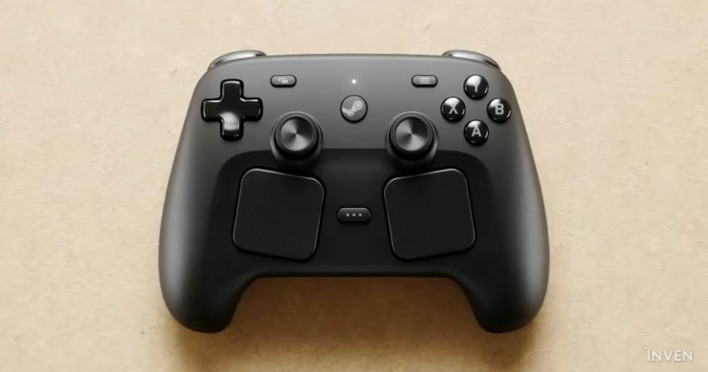
The Steam Controller is scheduled to go on sale on May 4th (local time) for $99. In Asia, it will be available via Komodo, the same service provider for the Steam Deck, at the Komodo Station. Detailed pricing and information are expected to be released soon.